Changelog

What shipped, newest first, and what we are building next.

See what is coming next

Every update, in your sidebar

In the app, each update arrives as a card at the foot of the sidebar. Read it, or swipe it away. Try it here.

HHarbor
HomeInboxMy tasksCalendar

Home and Knowledge

Switch between Home and Knowledge atop the sidebar, and see on Knowledge's Projects page which projects need a look.

Home and Knowledge
Read more
Drag a card sideways or flick it away. It is the real one from the app.

Shipped

Home and Knowledge

Switch between Home and Knowledge atop the sidebar, and see on Knowledge's Projects page which projects need a look.

Home and Knowledge

The workspace now has two views of its own, Home and Knowledge: what your team knows and how it works, kept in one place for people and the agent.

  • One switch: Home | Knowledge sits at the top of the sidebar, and each side opens where you last were. The workspace's logo, your workspaces and New workspace sit just above it.

  • Projects at a glance: Knowledge's Projects page lists each project with its teams, brief, decisions and stale pages, the ones that need a look first.

  • Tabs belong to projects: Home, Knowledge and Settings open on their own, without a tab bar; inside a project, the rail starts with Home and Knowledge.

  • Get started has two new tours in Getting around that show you both.
A new Get started

Learn Twentyfirst step by step in three sections, and try the agent on a private example project made just for you.

A new Get started

Get started is now one checklist in three sections: Getting around, Working with the agent and Automating.

  • Real ticks: every item has a short line and a Show me, and it ticks itself when you actually do the thing.

  • One section at a time: the next section opens once you've done most of the one before, or straight away with Skip ahead.

  • An example project: the agent and automation tours offer to make a private Example: Launch plan project with pages, tasks and an agent to try things on. Only you can see it, and Remove example project clears it away.

  • Tours that follow along: a tour's tip sits right below what it points at on the page and moves with it.

Open a sheet as a table with typed columns, filters and sums, and browse Files in an icon view like your desktop's.

Table view and a calmer Files

Sheets and Files both got a new look.

  • Table view: open a sheet's Table tab to see it as a database table. Columns know whether they hold text, numbers, money, dates or links, and you can edit right in the cells. Formulas stay formulas.

  • Sort, filter and sum: hide, reorder and resize columns, and turn on the Calculate footer for totals and averages. These settings are yours alone, so they never change the view for anyone else.

  • A calmer Files page: New sits in the page header, type pills filter what you see, and / jumps to search.

  • Icon view: the grid shows each item as a big icon with its name beneath, and a folder fans open when you hover over it.

Sprints are gone

Sprints and the Backlog page are gone; projects get statuses, milestones and views soon.

Sprints are gone

Planning is being rebuilt around projects, so two things went first.

  • Sprints are gone, with their commitments, the Sprints page and Settings → Sprints. Tasks that were in a sprint are all still there.

  • The Backlog page is gone. The Backlog state and its board column stay.

  • Coming soon: projects get a status, a lead, dates and milestones, tasks get estimates, repeats and comments, and you can save your own views.

Meetings

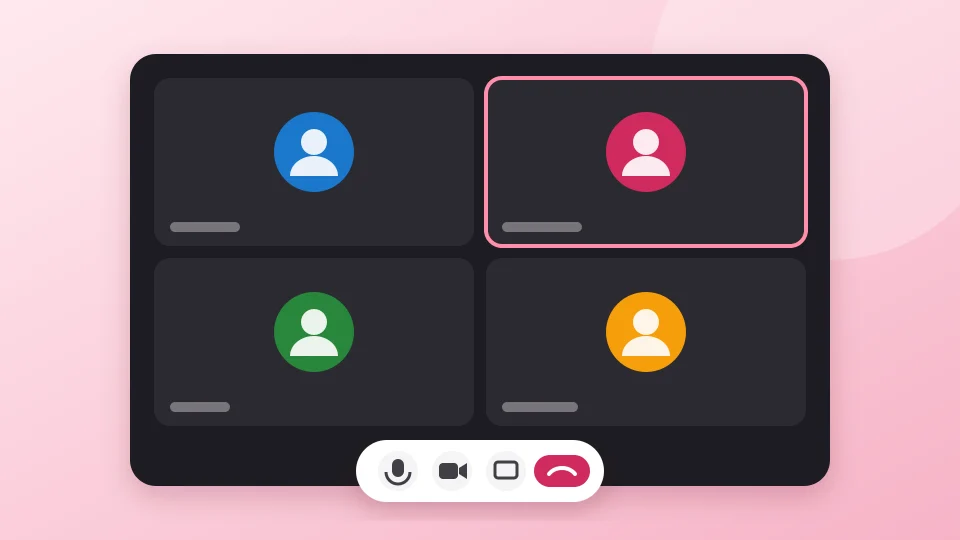
Video calls inside the workspace. Start one from a chat or an event, and keep working while it runs in a tile.

Meetings

You can now meet without leaving the workspace.

  • Start a call from any chat, or give an event a video call; the Meetings page lists your calls.

  • Keep working: move to another page and the call follows you as a floating tile.

  • Guests: send someone outside the workspace a link; they wait in a lobby until a member lets them in.

The agent can start, list and end meetings, and add a video call to an event it creates.

The new Planning

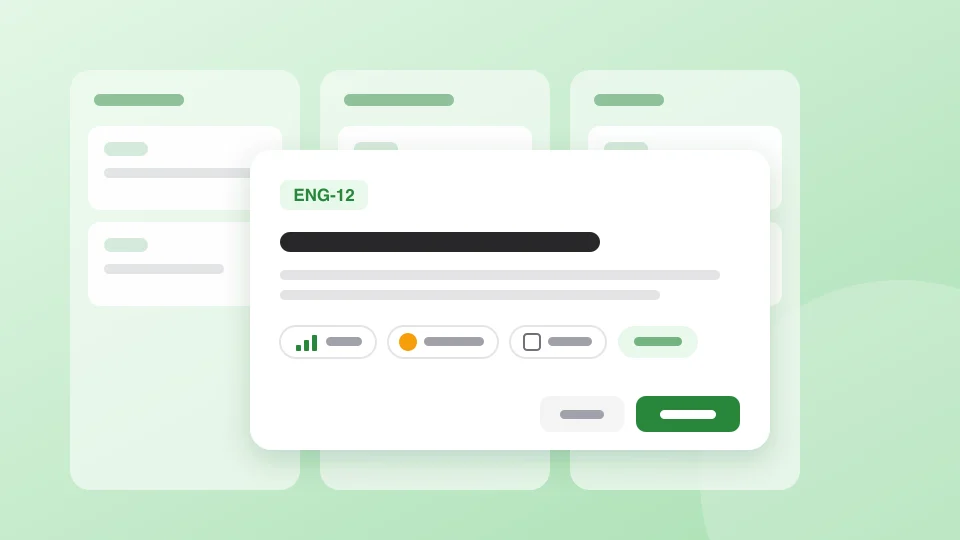
Tasks get keys like ENG-12, a priority, labels and relations, and one dialog creates them from anywhere.

The new Planning

Planning had a thorough rework.

  • Task keys: every project has a short key, and its tasks are numbered under it (ENG-12). The key shows on cards, rows and chips, and the agent understands it too.

  • One create dialog: a column's +, the backlog, My tasks, + Subtask and the calendar all open the same dialog. Press C anywhere, or type New task in ⌘K.

  • Priority, start dates, labels and relations: set them from the task panel's picker rows; a blocked task says so on its card.

  • The task panel, rebuilt: the description is written in the page editor, and a timeline shows what happened to the task.

Spaces

Give each team or project a space of its own, and switch between them from the top of the sidebar.

Spaces

Pages now live in spaces. Each member has Everyone, the space of the whole workspace, and a Private one only they can see, and anyone can start a shared space for a team, a client or a project.

  • Switch spaces from the title at the top of the Documents, Planning or Pipelines sidebar, or type Switch space in ⌘K. Documents, projects, sprints and runs follow the space you picked; My tasks shows your tasks from every space.

  • Open or closed: an open space can be browsed and joined by every member (Browse open spaces); a closed one is for the people in it.

  • New pages land where you are: pages you make from ⌘K or the sidebar go to the picked space, and Recent, Shared with me and Published say which space a page is in.

Owners and admins find every shared space under Settings → Spaces.

Suggesting mode

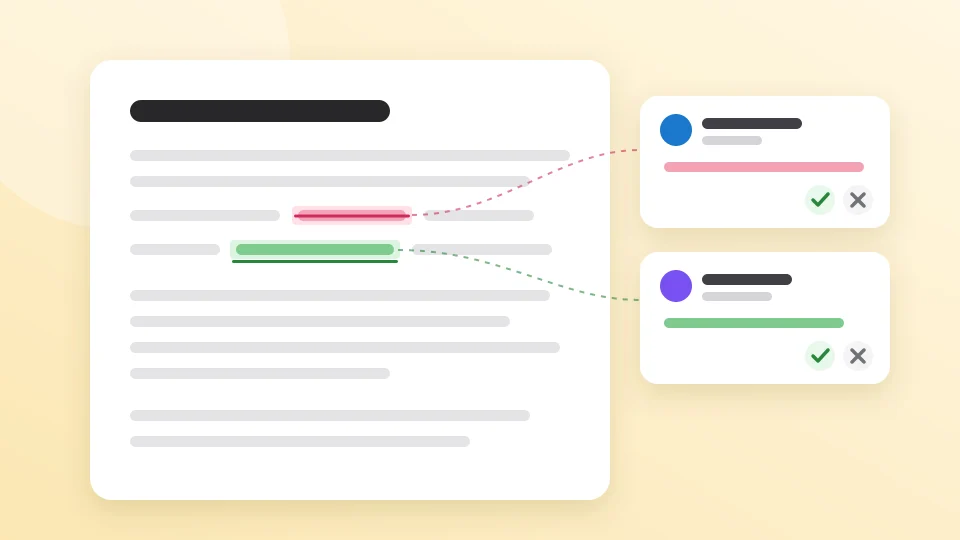
Propose edits instead of making them. Each one waits in the margin, with its author, to be accepted or rejected.

Suggesting mode

Pages have a new Editing / Suggesting / Viewing switch.

  • Suggesting: what you type and delete becomes a suggestion, marked with your name and the time, instead of a change.

  • The suggestions margin beside the page lists every suggestion next to the line it belongs to; accept or reject each one there.

  • The agent's edits are reviewed the same way, in a popup right where it wrote.

On a narrow screen the margin is a sheet behind the page's Suggestions button.

Coming next

Planned and on the way, by area. None of this is in the product yet; it lands here when it ships.

Across apps
Coming soon
  • Link anything to anythingType @ and reach any person, page, task, meeting, agent or message in the workspace.
  • Live cards everywhereDrop a task, meeting, agent, sheet range or slide into a doc or message, and it stays up to date.
  • Instant, with undoChanges happen immediately, and ⌘Z takes them back, even the agent's.
  • Live work arrives, history stays stillSee what just happened without the noise.